

LLM Chat: A universal LLM chatbot - works locally or with APIs
17/01/2026 • 00:01:00
Project Reference
This article relates to a project in our portfolio.
Introduction:
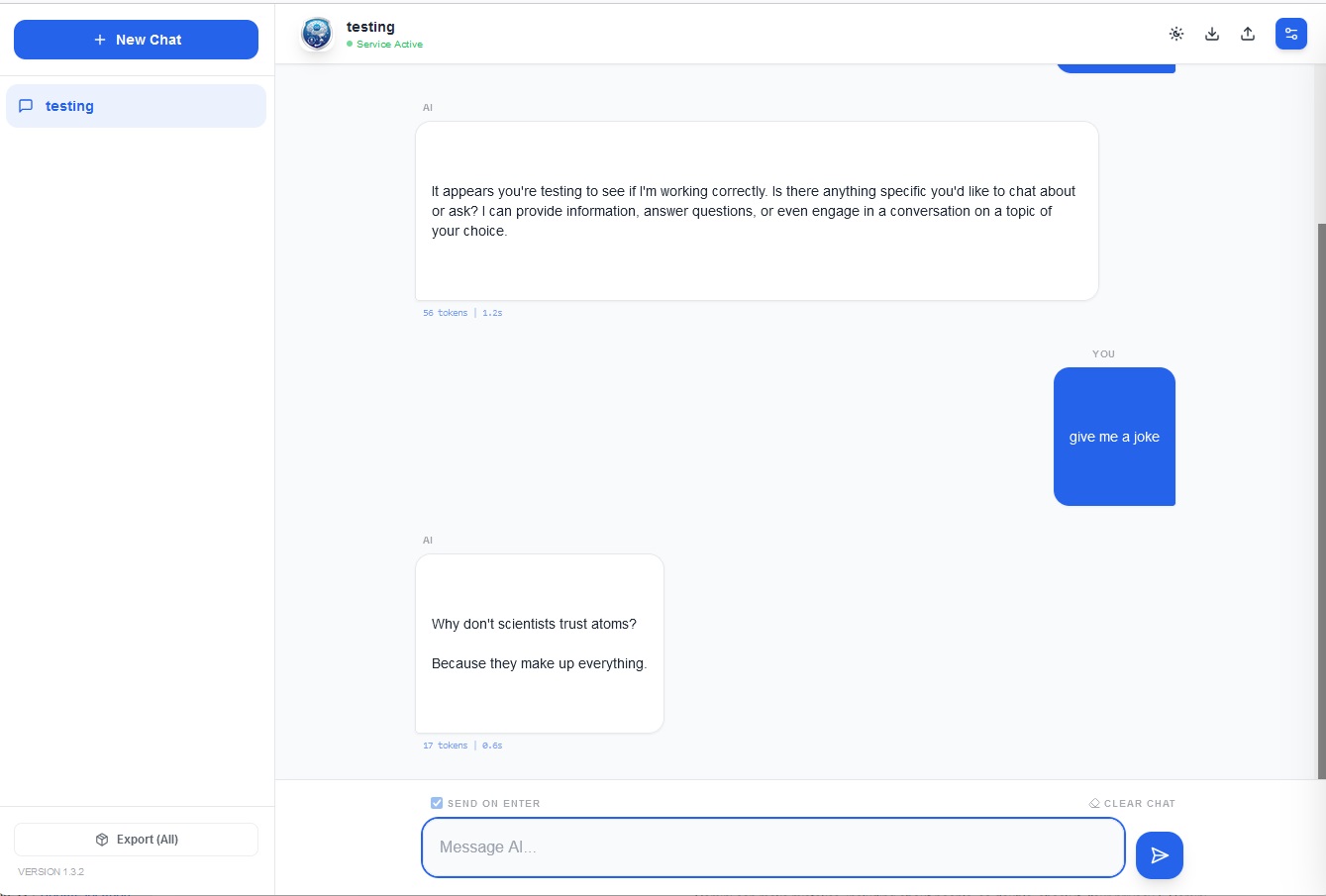
LLM Chat is a lightweight web interface that allows you to chat with any Large Language Model (LLM), anywhere, through a unified UI. Whether you are running a powerhouse model locally for privacy or tapping into the latest cloud-based intelligence, LLM Chat bridges the gap.
It provides a professional-grade environment where you can import/export conversations, control granular inference parameters, and stream responses in real-time.
🚀 Key Features
- Multi-Provider Integration: Seamlessly switch between local backends (Ollama, LM Studio) and cloud-based APIs (OpenAI, Google Gemini).
- Privacy-Centric: Your conversations, system prompts, and settings are stored directly in your browser's
localStorage. No external database is required. - Advanced Parameter Tuning: Total control over the model's behaviour with dedicated sliders for Temperature, Top-P, Top-K, and Max Tokens.
- Dynamic UI: Includes a custom accent colour picker, dark mode support, and a responsive sidebar for managing multiple conversation threads.
- Pro Tools: Edit existing messages, delete specific entries, and export/import your entire chat library as JSON files for easy backup.
📖 How to Use
1. Configure Your Provider
Open the Settings Sidebar (gear icon) to choose your backend:
- Ollama / LM Studio: Ensure your local server is running. The tool defaults to the standard local ports (e.g.,
11434or1234). - OpenAI / Gemini: Select the provider, enter your API Key, and specify the Model ID (e.g.,
gpt-4oorgemini-1.5-flash).
2. Set the System Prompt (Optional)
Define the AI's persona. You can instruct it to be a "Senior Software Engineer," a "Socratic Tutor," or a "Creative Copywriter." This prompt persists across your session to ensure consistent interactions.
3. Manage Your Library
- New Chats: Click "New Chat" to start a fresh thread with a clean context.
- Exporting: Use the export icons to save a single conversation or your entire chat history for archival purposes.
- Importing: Simply drag and drop your JSON exports to restore your previous work and continue where you left off.
Summary
LLM Chat is designed for users who want a single, clean interface to manage all their AI interactions. By combining the cost-efficiency and privacy of local models with the sheer power of cloud APIs, it serves as a "universal remote" for the world of LLMs. Whether you're debugging code locally or generating content via the cloud, LM Chat keeps your workflow organized and your data under your control.
Project Reference
This article relates to a project in our portfolio.